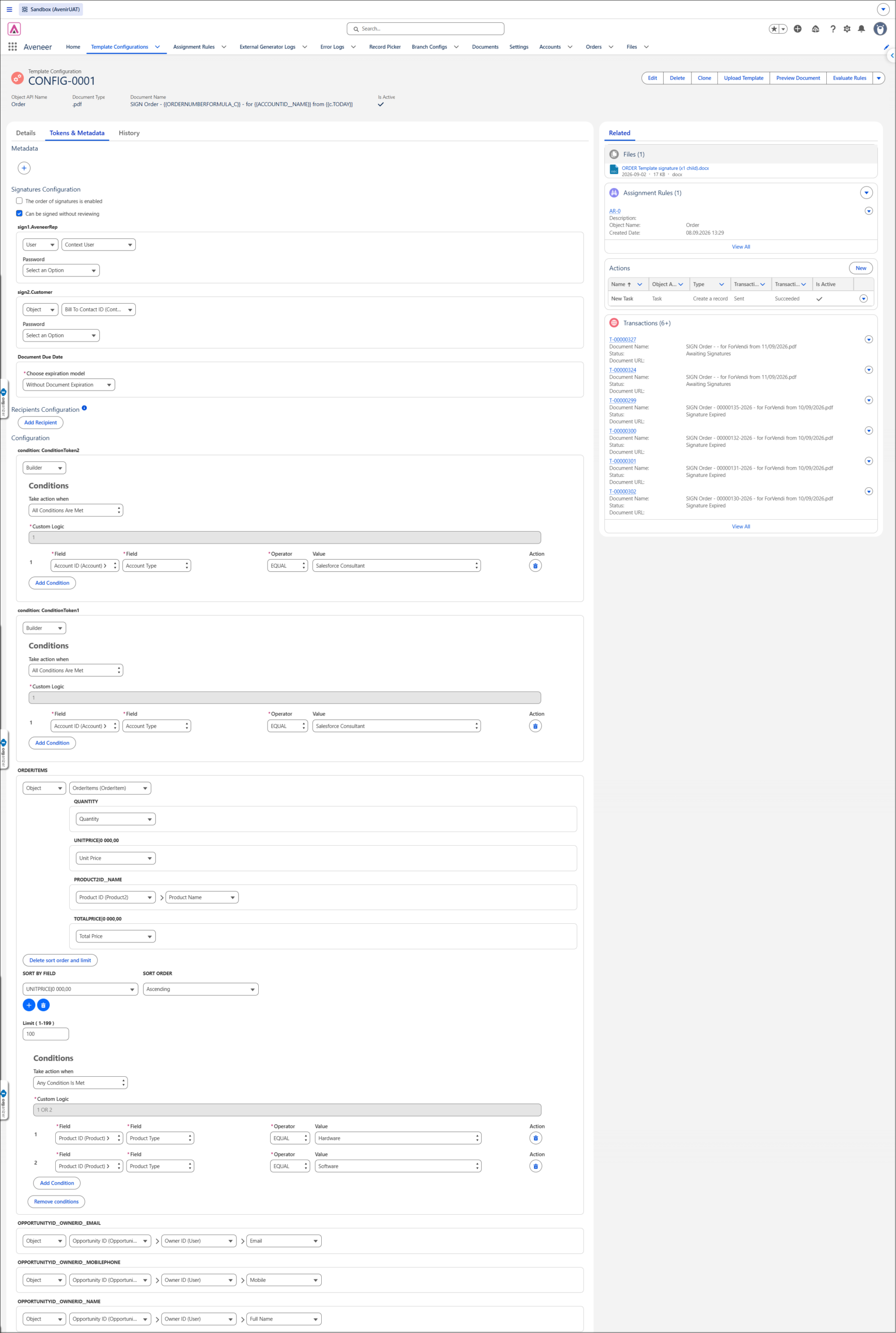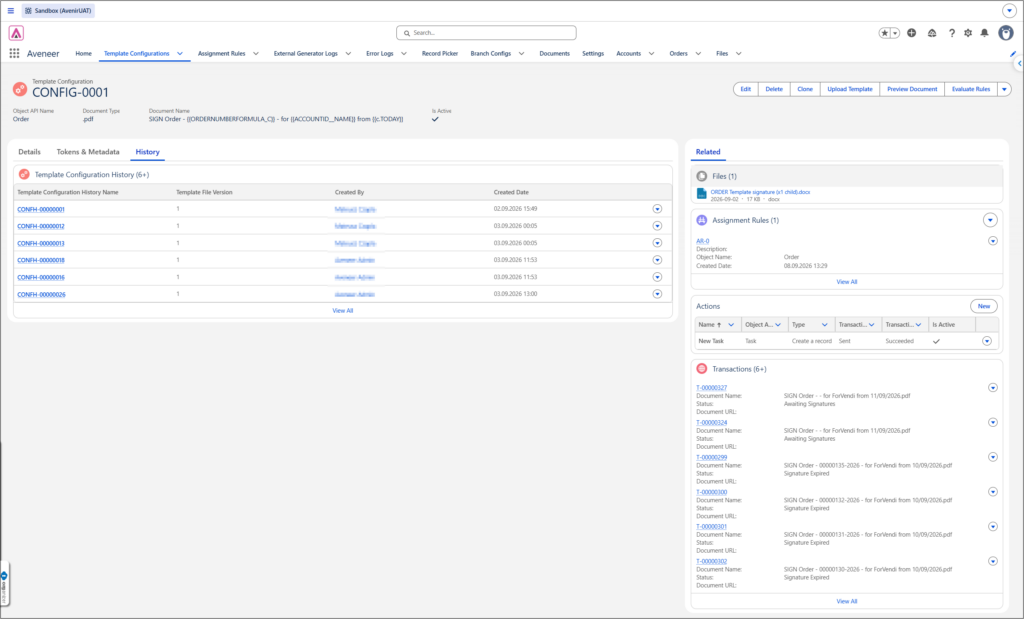
Template Configurations is the main object of Aveneer. It defines the properties, the outline, and the data of generated documents. After a Template Configuration is set up, it is possible to either save it as a draft, or save and activate it. Please note that only saving and activating a Template Configuration record will make document generation possible.

To create new Template Configuration record, go to Template Configurations -> New -> Default Template Configuration.
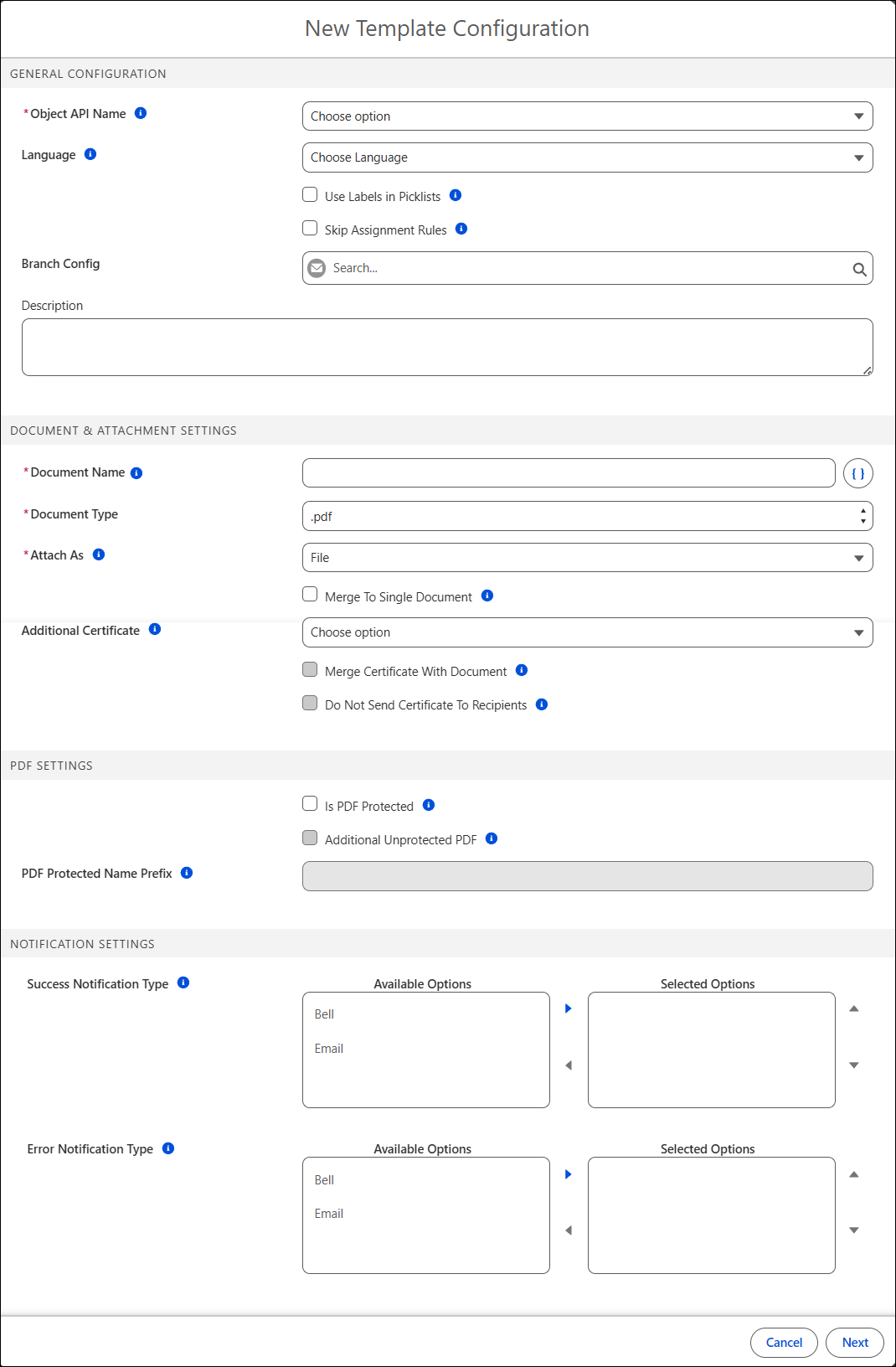
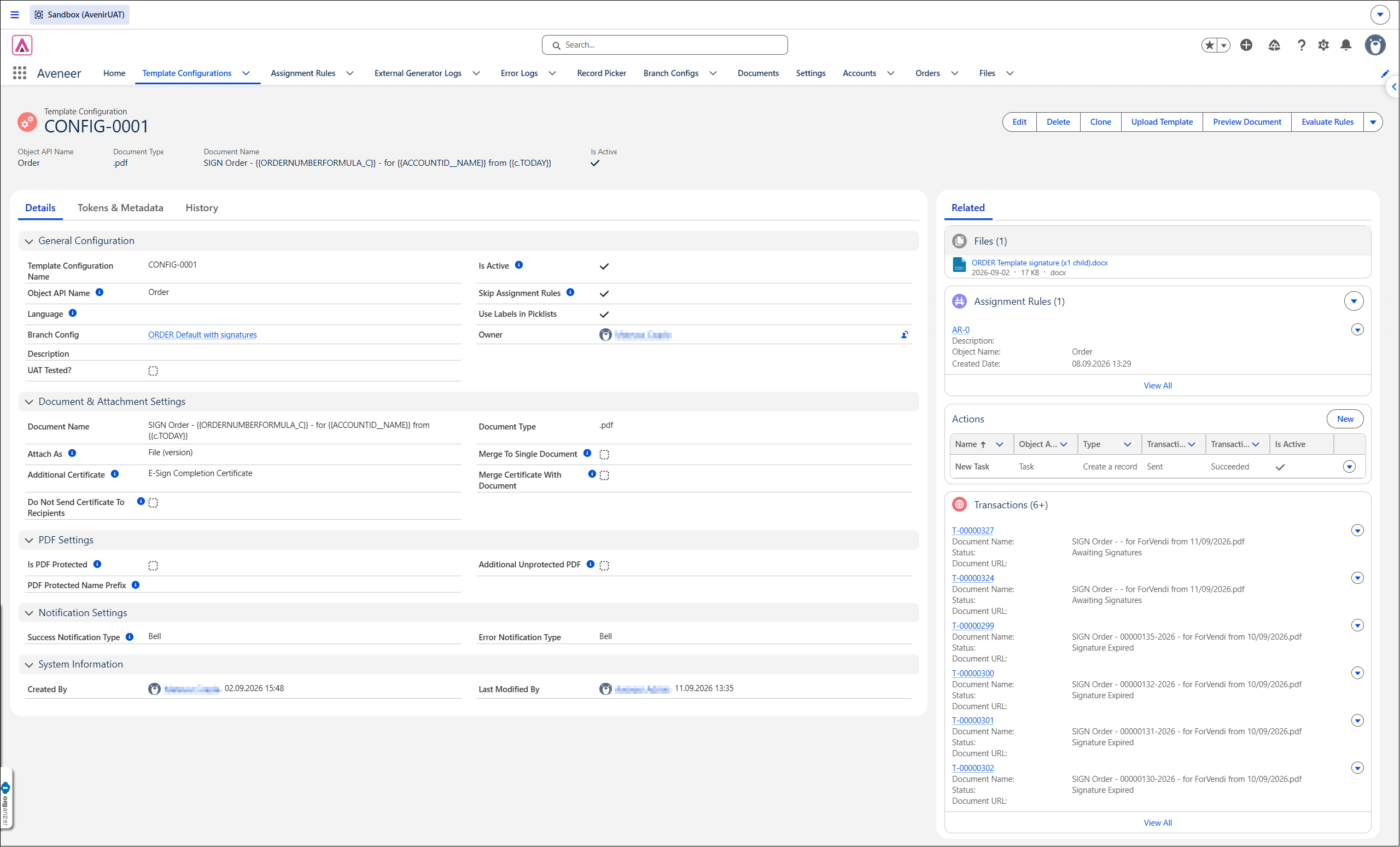
In the New Template Configuration window populate the fields:
- Object API Name – The Primary Object where the document generation is initiated.
- Language – The language of the picklists values.
- Use Labels In Picklists – Determines if labels or API names of the picklist’s values should be inserted into the generated document.
- Ski Assignment Rules – Decides if any related Assignment Rules records should be ignored.
- Branch Config – Related Branch Config record.
- Description – Text description of the Template Configuration record.
- Document Name – The name of the generated document. It can be generated dynamically using Aveneer Tokens, e.g. “Quote for {{ACCOUNTID__NAME}}”, however, utilized tokens have to be included in the uploaded docx template.
- Document Type – The format of the outcome document – pdf, docx or xlsx.
- Attach As – Determines how the generated document is stored within Salesforce – Attachment, File or File (version).
- Attachment – legacy object with limited sharing options.
- File – ContentDocument + ContentVersion + ContentDocumentLink. Each generated document is saved in Salesforce as a new ContentDocument record.
- File (version) – Each document generated for a combination of Template Configuration and Primary Object’s record is saved under the same ContentDocument record as a new ContentVersionId. This allows for versioning of the same generated document. Does not support merged documents and certificates – these are always generated as new ContentDocument records.
- Merge to Single Document – It merges multiple documents into single file and as such saves it in Salesforce.
- Additional Certificate – Selects additional, optional document (certificate) that is generated with the main document. Option available only for the Aveneer Signature flow – there has to be a related Branch Config record with the Record Type equal to “With Signatures”. Certificate, by default, is included with the Document Complete Email Notification.
- Merge Certificate With Document – Determines if the additional certificate should be merged with the main document.
- Do not Send Certificate To Recipients – Excludes the additional certificate from Document Complete Email Notification sent out once the signing process is completed.
- Is PDF Protected – Adds password protection to the generated document. Once selected, additional token appears that allows to define the password.
- Additional Unprotected PDF – Generates additional, unprotected file. This can’t be generated independently to the password protected version.
- PDF Protected Name Prefix – Defines the prefix added to the password protected file.
- Notifications – Notifications that are sent to the User generation documents. Either a native Salesforce push notification or a fully customizable Email Notification can be seelcted:
- Success Notification Type – Notification sent if the document generation process is successful.
- Error Notification Type – Notification sent if the document generation process fails.

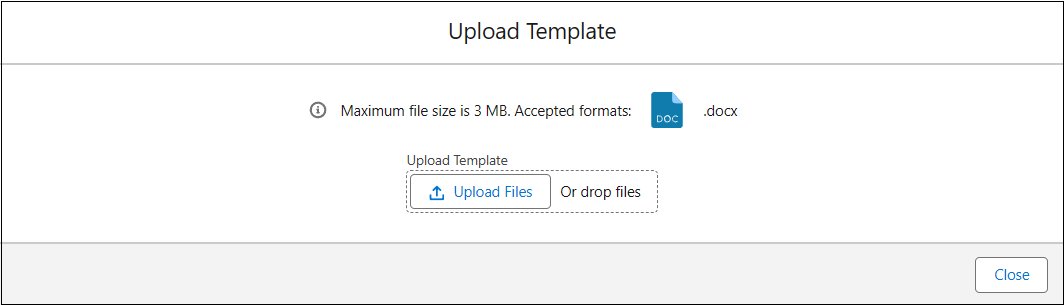
After creating a Template Configuration record, the next step is to upload a previously prepared docx template for pdf & docx or an xlsx template for xlsx. Such template should be the final version of the target document, but with Aveneer tokens in places where Users want to retrieve and insert Salesforce data. To do so, Users should press the “Upload Template” button on the Template Configuration record page, and then follow the instructions displayed on their screen.